Blog

  • How to Hide Post and Page on WordPress Site – Duplicate Copy

    How to Hide Post and Page on WordPress Site – Duplicate Copy

    WordPress is adaptable. Using WordPress themes, templates, and installing plugins, you can develop any type of website that you want. Most WordPress themes are set up so that your latest blog posts appear on the front page of your site. Or, if you have a static home page, your newest entries appear on a page.

    But what if you want to hide some of your posts from the front page or other Blog Pages?

    In other words, you want to hide specific posts on the front page, or maybe you don’t want it to show anywhere else in your blog except when you have the direct link to it.

    In this article, we will show you how to hide specific posts and pages from selected pages in WordPress such as homepage, category archives, search results, and more.

    Why do people need to hide posts and pages from a website?

    There are several reasons why people would want to hide posts and pages from their website. For beginners, your blog might offer a number of types of posts from brief descriptions to more in-depth. Now you seek a better guide and want more appealing posts to appear on a home page because you wouldn’t want to detract from other.

    Maybe a guest blogger recently wrote a post on a controversial topic and would prefer it not be the first thing your blog visitors see. Now you want to hide the post from your homepage while still allowing others to view it if they have the direct link.

    Maybe you’d rather showcase your most popular content rather than your most recent content. The reasons are diverse. What’s important is you can make this simple change pretty painlessly using the wordpress plugin “WordPress Hide Post and Page. And you have a couple of options to get it done.

    WordPress Hide Posts and pages

    WordPress Hide Post and Page control the visibility of WordPress post type items like pages, posts, and custom post type. You can hide a specific post from your website homepage, category, or search result page while still allowing others to view it if they have the direct link. Using this plugin users can control post and page visibility on different sections.

    Control Posts Visibility

    Using the WordPress Hide Post and Page plugin you can control the visibility of a specific post in different section. To hide a specific post, you can edit its visibility in different section which are as follows:

    • Post Visibility on FrontPage: You can control post visibility on the Front Page. For example, you may have recent posts and featured posts section on your FrontPage and you might want to show post only in the featured section.  Using this wordpress plugin, you would avoid having duplicate content on the FrontPage.
    • Post Visibility on Category Page: You can hide a specific post from the category page or from subcategory pages.
    • Post Visibility on Tag page: WP Hide Post allows you to hide a specific post from the tag page (listing the posts tagged with a given tag)
    • Post Visibility on Author Page: You can hide a specific post from the wordpress author page. For example, you may want to hide a specific post written by a guest blogger. So whenever you see a list of posts written by a guest blogger on the author page that post will not be there.
    • Post Visibility on Archive Page: WP Post Hide allows you to hide a specific post from the Archive Pages (listing the posts belonging to time period: month, week, day, etc…)
    • Post Visibility on Search Result Page: WordPress Hide Post allows you to hide a specific post from the Search Results Page. Whenever a user searches a keyword or a post title it will be hidden on the search result page.
    • Post Visibility in Recent Post Widget: You can hide a specific post from the recent post widgets section.
    • Post Visibility on Meta rel Link: Hide a specific post from the Next and previous rel link.
    • Post Visibility on RSS feed: WP Hide Post can be used to hide posts from showing up as published in your RSS feed as well.

    Control Pages Visibility

    Using WordPress Hide Post and Page  plugin, you can control the visibility of a specific page in different sections which are as follows: 

    • Hide from the listing of pages on the front page
    • Hide from pages’ list everywhere
    • Hide from pages’ list everywhere expect search page

    How to Control Post and Page Visibility Using WP Hide Post?

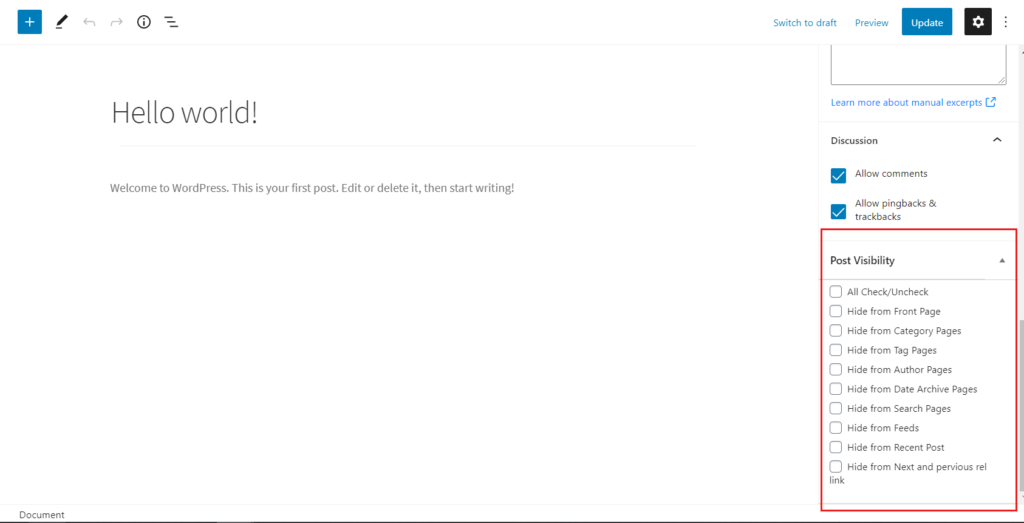
    You just need to edit the page or post you want to hide. There will be a new “Page Visibility” or “Post Visibility” section in the right column of the editor. There you can check the box labeled “Hide from the listing of pages Front Page” and save your changes. Once you select this box, the page will be hidden from the listing of pages on the homepage. But visitors can still find it on other pages of your site until you select the “Hide from pages’ list everywhere” option. Similarly, you can hide a selected post from different sections of your website. You can enable the “Page Visibility” or “Post Visibility” section in quick edit or bulk edit.
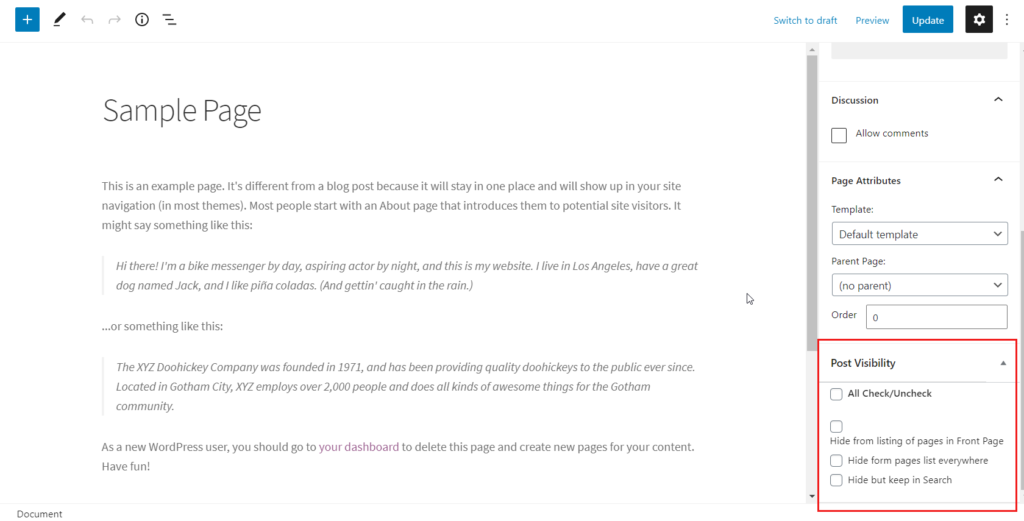
    Page_visibility
    Page Visibility
    post_visibility
    Post Visibility

    We hope this article helped you to hide posts and pages on your wordpress website. If you liked this article, then please subscribe to our YouTube Channel for WordPress video tutorials. You can also find us on Twitter and Facebook.

  • voucher size test

    • Select Design
    • Fill Form
    • Overview
    • Payment

    Select Voucher Design

    BonusVoucher

    Fill Voucher Form

    Send Voucher through Email

    Send Voucher on Physical Address through Shipping, Shipping cost will apply.

    Invalid OR Empty Email
    Please first accept the terms and condition
    image-description

    Overview

    Total Price: $30
    image-description
    • Receiver Email
    • Postal Address
    • Postal City
    • Postal Code

    Payment

    Total Price: $30

    Select Payment Method

    Complete your voucher purchase via the secure checkout page.
    image-description

    Voucher Payment Successful!

    We have got your order! Email successfully sent to test@gmail.com

  • Chatbot

    [xsuacw-chatbot]

  • ورڈپریس سائٹ پر پوسٹ اور پیج کو کیسے چھپائیں۔

    ورڈپریس سائٹ پر پوسٹ اور پیج کو کیسے چھپائیں۔

    ورڈپریس قابل اطلاق ہے۔ Using WordPress themes, templates, and installing plugins, you can develop any type of website that you want. Most WordPress themes are set up so that your latest blog posts appear on the front page of your site. Or, if you have a static home page, your newest entries appear on a page.

    But what if you want to hide some of your posts from the front page or other Blog Pages?

    In other words, you want to hide specific posts on the front page, or maybe you don’t want it to show anywhere else in your blog except when you have the direct link to it.

    In this article, we will show you how to hide specific posts and pages from selected pages in WordPress such as homepage, category archives, search results, and more.

    Why do people need to hide posts and pages from a website?

    There are several reasons why people would want to hide posts and pages from their website. For beginners, your blog might offer a number of types of posts from brief descriptions to more in-depth. Now you seek a better guide and want more appealing posts to appear on a home page because you wouldn’t want to detract from other.

    Maybe a guest blogger recently wrote a post on a controversial topic and would prefer it not be the first thing your blog visitors see. Now you want to hide the post from your homepage while still allowing others to view it if they have the direct link.

    Maybe you’d rather showcase your most popular content rather than your most recent content. The reasons are diverse. What’s important is you can make this simple change pretty painlessly using the wordpress plugin “WordPress Hide Post and Page. And you have a couple of options to get it done.

    WordPress Hide Posts and pages

    WordPress Hide Post and Page control the visibility of WordPress post type items like pages, posts, and custom post type. You can hide a specific post from your website homepage, category, or search result page while still allowing others to view it if they have the direct link. Using this plugin users can control post and page visibility on different sections.

    Control Posts Visibility

    Using the WordPress Hide Post and Page plugin you can control the visibility of a specific post in different section. To hide a specific post, you can edit its visibility in different section which are as follows:

    • Post Visibility on FrontPage: You can control post visibility on the Front Page. For example, you may have recent posts and featured posts section on your FrontPage and you might want to show post only in the featured section.  Using this wordpress plugin, you would avoid having duplicate content on the FrontPage.
    • Post Visibility on Category Page: You can hide a specific post from the category page or from subcategory pages.
    • Post Visibility on Tag page: WP Hide Post allows you to hide a specific post from the tag page (listing the posts tagged with a given tag)
    • Post Visibility on Author Page: You can hide a specific post from the wordpress author page. For example, you may want to hide a specific post written by a guest blogger. So whenever you see a list of posts written by a guest blogger on the author page that post will not be there.
    • Post Visibility on Archive Page: WP Post Hide allows you to hide a specific post from the Archive Pages (listing the posts belonging to time period: month, week, day, etc…)
    • Post Visibility on Search Result Page: WordPress Hide Post allows you to hide a specific post from the Search Results Page. Whenever a user searches a keyword or a post title it will be hidden on the search result page.
    • Post Visibility in Recent Post Widget: You can hide a specific post from the recent post widgets section.
    • Post Visibility on Meta rel Link: Hide a specific post from the Next and previous rel link.
    • Post Visibility on RSS feed: WP Hide Post can be used to hide posts from showing up as published in your RSS feed as well.

    Control Pages Visibility

    Using WordPress Hide Post and Page  plugin, you can control the visibility of a specific page in different sections which are as follows: 

    • Hide from the listing of pages on the front page
    • Hide from pages’ list everywhere
    • Hide from pages’ list everywhere expect search page

    How to Control Post and Page Visibility Using WP Hide Post?

    You just need to edit the page or post you want to hide. There will be a new “Page Visibility” or “Post Visibility” section in the right column of the editor. There you can check the box labeled “Hide from the listing of pages Front Page” and save your changes. Once you select this box, the page will be hidden from the listing of pages on the homepage. But visitors can still find it on other pages of your site until you select the “Hide from pages’ list everywhere” option. Similarly, you can hide a selected post from different sections of your website. You can enable the “Page Visibility” or “Post Visibility” section in quick edit or bulk edit.

    Page_visibility
    Page Visibility
    post_visibility
    Post Visibility

    We hope this article helped you to hide posts and pages on your wordpress website. If you liked this article, then please subscribe to our YouTube Channel for WordPress video tutorials. You can also find us on Twitter and Facebook.

  • How to Hide Post and Page on WordPress Site

    How to Hide Post and Page on WordPress Site

    WordPress is adaptable. Using WordPress themes, templates, and installing plugins, you can develop any type of website that you want. Most WordPress themes are set up so that your latest blog posts appear on the front page of your site. Or, if you have a static home page, your newest entries appear on a page.

    But what if you want to hide some of your posts from the front page or other Blog Pages?

    In other words, you want to hide specific posts on the front page, or maybe you don’t want it to show anywhere else in your blog except when you have the direct link to it.

    In this article, we will show you how to hide specific posts and pages from selected pages in WordPress such as homepage, category archives, search results, and more.

    Why do people need to hide posts and pages from a website?

    There are several reasons why people would want to hide posts and pages from their website. For beginners, your blog might offer a number of types of posts from brief descriptions to more in-depth. Now you seek a better guide and want more appealing posts to appear on a home page because you wouldn’t want to detract from other.

    Maybe a guest blogger recently wrote a post on a controversial topic and would prefer it not be the first thing your blog visitors see. Now you want to hide the post from your homepage while still allowing others to view it if they have the direct link.

    Maybe you’d rather showcase your most popular content rather than your most recent content. The reasons are diverse. What’s important is you can make this simple change pretty painlessly using the wordpress plugin “WordPress Hide Post and Page. And you have a couple of options to get it done.

    WordPress Hide Posts and pages

    WordPress Hide Post and Page control the visibility of WordPress post type items like pages, posts, and custom post type. You can hide a specific post from your website homepage, category, or search result page while still allowing others to view it if they have the direct link. Using this plugin users can control post and page visibility on different sections.

    Control Posts Visibility

    Using the WordPress Hide Post and Page plugin you can control the visibility of a specific post in different section. To hide a specific post, you can edit its visibility in different section which are as follows:

    • Post Visibility on FrontPage: You can control post visibility on the Front Page. For example, you may have recent posts and featured posts section on your FrontPage and you might want to show post only in the featured section.  Using this wordpress plugin, you would avoid having duplicate content on the FrontPage.
    • Post Visibility on Category Page: You can hide a specific post from the category page or from subcategory pages.
    • Post Visibility on Tag page: WP Hide Post allows you to hide a specific post from the tag page (listing the posts tagged with a given tag)
    • Post Visibility on Author Page: You can hide a specific post from the wordpress author page. For example, you may want to hide a specific post written by a guest blogger. So whenever you see a list of posts written by a guest blogger on the author page that post will not be there.
    • Post Visibility on Archive Page: WP Post Hide allows you to hide a specific post from the Archive Pages (listing the posts belonging to time period: month, week, day, etc…)
    • Post Visibility on Search Result Page: WordPress Hide Post allows you to hide a specific post from the Search Results Page. Whenever a user searches a keyword or a post title it will be hidden on the search result page.
    • Post Visibility in Recent Post Widget: You can hide a specific post from the recent post widgets section.
    • Post Visibility on Meta rel Link: Hide a specific post from the Next and previous rel link.
    • Post Visibility on RSS feed: WP Hide Post can be used to hide posts from showing up as published in your RSS feed as well.

    Control Pages Visibility

    Using WordPress Hide Post and Page  plugin, you can control the visibility of a specific page in different sections which are as follows: 

    • Hide from the listing of pages on the front page
    • Hide from pages’ list everywhere
    • Hide from pages’ list everywhere expect search page

    How to Control Post and Page Visibility Using WP Hide Post?

    You just need to edit the page or post you want to hide. There will be a new “Page Visibility” or “Post Visibility” section in the right column of the editor. There you can check the box labeled “Hide from the listing of pages Front Page” and save your changes. Once you select this box, the page will be hidden from the listing of pages on the homepage. But visitors can still find it on other pages of your site until you select the “Hide from pages’ list everywhere” option. Similarly, you can hide a selected post from different sections of your website. You can enable the “Page Visibility” or “Post Visibility” section in quick edit or bulk edit.

    Page_visibility
    Page Visibility
    post_visibility
    Post Visibility

    We hope this article helped you to hide posts and pages on your wordpress website. If you liked this article, then please subscribe to our YouTube Channel for WordPress video tutorials. You can also find us on Twitter and Facebook.

  • كيفية إنشاء قسيمة وقسيمة في ووردبريس

    كيفية إنشاء قسيمة وقسيمة في ووردبريس

    Do you want to create coupons and vouchers in WordPress? People are always seeking ways to spend wisely. Most customers look for a coupon before visiting a retailer because everyone wants to save money. Coupon and voucher codes are good for promoting your online store, reducing cart abandonment, and increasing your online business sales. You can offer coupons and voucher deals to convince users to make a purchase from your store immediately. In this article, we will show you how to save a few bucks that lead to more sales for your online business using a wordpress plugin.

    Why Use a plugin to create coupons and vouchers for your online store?

    There are several reasons why use a plugin to create coupons and vouchers for your online business. A coupon or a voucher is a great way to convert your website visitors into customers and increase sales on your online store. You can offer different coupon and voucher deals so that your customers will be attracted to visit the store more often and purchase more items. Because stores don’t offer any coupons, consumers will likely shift or go to similar stores that offer coupons or discounts.

    if you have a coupon or a voucher field on your website page, then people will search for a coupon code before making the purchase, so they can save money. That’s means if you want to reduce cart rejections and increase sales, then you need to add coupons and vouchers on your website.

    While WooCommerce comes with a built-in coupon feature, you need a third-party plugin for advanced coupon and voucher features like creating custom coupon and voucher templates, adding date and price features, displaying coupons and vouchers in popups, and more.

    You can use the “WP Voucher Creator” plugin to grow your sales. Let’s take a look at the plugin features and functionality.

    WordPress Coupon and Voucher Creator

    WordPress Coupon and Voucher Creator is the best WordPress plugin for providing coupons and gift vouchers to your site visitors. WP Voucher Creator allows you to create your desired deal, gift cards, eCards, promo codes, discount cards, and voucher design. In short, WordPress Coupon and Voucher Creator do exactly what its name says.

    Main Features

    Here are the main features of WordPress Coupon Creator

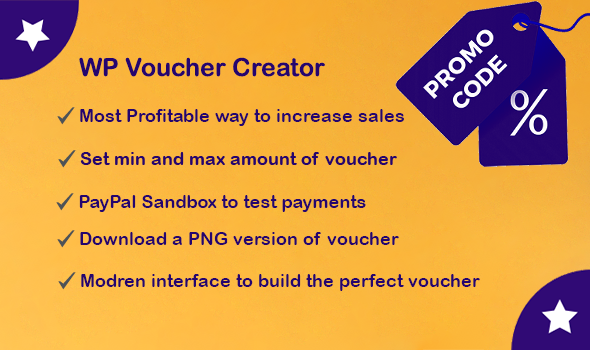
    • Modern interface to build vouchers: WP Voucher Creator provides a modern interface to build vouchers, gift cards, promo codes, discount cards. WP Voucher Creator allows you to create your own template by using canvas. You can add custom logos and branding to your voucher.
    • Set Voucher Amount: WordPress voucher creator allows you to set the minimum and maximum voucher amount.
    • Voucher Expiry Date: WP Coupon and Voucher creator is the most profitable way to increase sales it allows you to set voucher expiry date. Its means you cannot use your voucher after its expiry date.
    • Voucher Currency: For some countries, exchange rates constantly change, while others use a fixed exchange rate. Coupon Creator allows you to set voucher currency according to your needs.  
    • Success Page: You can set a payment success page. Whenever users purchase a voucher, after completing the payment process success page will be shown to them.
    • Live Preview: After creating the voucher template and voucher you can see a live preview of the voucher.
    • Voucher Entries: You can see purchased voucher entries. All entries are displayed in a table on the entries page.
    • Shortcodes: WP voucher creator provides shortcodes to show coupons and vouchers in posts or pages on the front end. You just need to copy the voucher code and paste it inside the post or page where you want to show your coupon or voucher.
    • Download Voucher: After purchasing the voucher user can download the voucher in png format.
    • PayPal Sandbox: WP Voucher Creator provides a PayPal Sandbox feature to test payments.
    • Emails: You can add an email that will receive vouchers bought by any user. Whenever a user purchases a voucher you will receive an email regarding this,

    How WordPress Coupon and Voucher Creator Works?

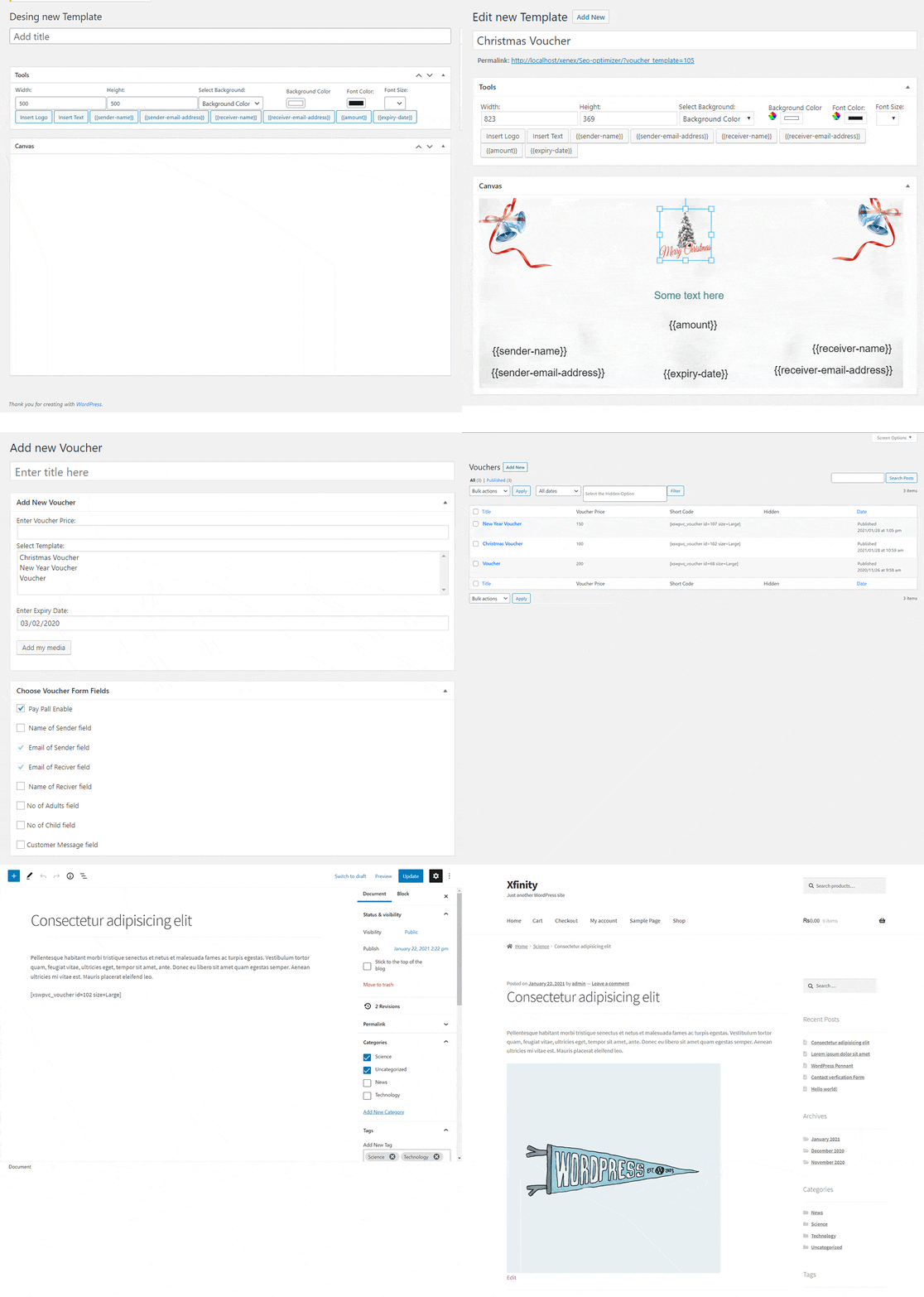
    WordPress Coupon Creator allows you to create your desired deal, gift cards, eCards, promo codes, discount cards, and voucher design. After creating a coupon or a voucher template you have to add a new coupon or voucher and set the price, expiry date, select template, and choose voucher form fields. After that, all you have to do is place the voucher shortcodes on any post or page you want. You can set the min and max coupon or voucher amount. You can save the email that will receive coupons or vouchers bought by any User or PayPal info to test payment.

    WP Voucher Creator Backend

    We hope this article helped you to create a coupon or voucher on your wordpress website. If you liked this article, then please subscribe to our YouTube Channel for WordPress video tutorials. You can also find us on Twitter and Facebook.

  • ورڈپریس میں کوپن اور واؤچر کیسے بنائیں

    ورڈپریس میں کوپن اور واؤچر کیسے بنائیں

    Do you want to create coupons and vouchers in WordPress? People are always seeking ways to spend wisely. Most customers look for a coupon before visiting a retailer because everyone wants to save money. Coupon and voucher codes are good for promoting your online store, reducing cart abandonment, and increasing your online business sales. You can offer coupons and voucher deals to convince users to make a purchase from your store immediately. In this article, we will show you how to save a few bucks that lead to more sales for your online business using a wordpress plugin.

    Why Use a plugin to create coupons and vouchers for your online store?

    There are several reasons why use a plugin to create coupons and vouchers for your online business. A coupon or a voucher is a great way to convert your website visitors into customers and increase sales on your online store. You can offer different coupon and voucher deals so that your customers will be attracted to visit the store more often and purchase more items. Because stores don’t offer any coupons, consumers will likely shift or go to similar stores that offer coupons or discounts.

    if you have a coupon or a voucher field on your website page, then people will search for a coupon code before making the purchase, so they can save money. That’s means if you want to reduce cart rejections and increase sales, then you need to add coupons and vouchers on your website.

    While WooCommerce comes with a built-in coupon feature, you need a third-party plugin for advanced coupon and voucher features like creating custom coupon and voucher templates, adding date and price features, displaying coupons and vouchers in popups, and more.

    You can use the “WP Voucher Creator” plugin to grow your sales. Let’s take a look at the plugin features and functionality.

    WordPress Coupon and Voucher Creator

    WordPress Coupon and Voucher Creator is the best WordPress plugin for providing coupons and gift vouchers to your site visitors. WP Voucher Creator allows you to create your desired deal, gift cards, eCards, promo codes, discount cards, and voucher design. In short, WordPress Coupon and Voucher Creator do exactly what its name says.

    Main Features

    Here are the main features of WordPress Coupon Creator

    • Modern interface to build vouchers: WP Voucher Creator provides a modern interface to build vouchers, gift cards, promo codes, discount cards. WP Voucher Creator allows you to create your own template by using canvas. You can add custom logos and branding to your voucher.
    • Set Voucher Amount: WordPress voucher creator allows you to set the minimum and maximum voucher amount.
    • Voucher Expiry Date: WP Coupon and Voucher creator is the most profitable way to increase sales it allows you to set voucher expiry date. Its means you cannot use your voucher after its expiry date.
    • Voucher Currency: For some countries, exchange rates constantly change, while others use a fixed exchange rate. Coupon Creator allows you to set voucher currency according to your needs.  
    • Success Page: You can set a payment success page. Whenever users purchase a voucher, after completing the payment process success page will be shown to them.
    • Live Preview: After creating the voucher template and voucher you can see a live preview of the voucher.
    • Voucher Entries: You can see purchased voucher entries. All entries are displayed in a table on the entries page.
    • Shortcodes: WP voucher creator provides shortcodes to show coupons and vouchers in posts or pages on the front end. You just need to copy the voucher code and paste it inside the post or page where you want to show your coupon or voucher.
    • Download Voucher: After purchasing the voucher user can download the voucher in png format.
    • PayPal Sandbox: WP Voucher Creator provides a PayPal Sandbox feature to test payments.
    • Emails: You can add an email that will receive vouchers bought by any user. Whenever a user purchases a voucher you will receive an email regarding this,

    How WordPress Coupon and Voucher Creator Works?

    WordPress Coupon Creator allows you to create your desired deal, gift cards, eCards, promo codes, discount cards, and voucher design. After creating a coupon or a voucher template you have to add a new coupon or voucher and set the price, expiry date, select template, and choose voucher form fields. After that, all you have to do is place the voucher shortcodes on any post or page you want. You can set the min and max coupon or voucher amount. You can save the email that will receive coupons or vouchers bought by any User or PayPal info to test payment.

    WP Voucher Creator Backend

    We hope this article helped you to create a coupon or voucher on your wordpress website. If you liked this article, then please subscribe to our YouTube Channel for WordPress video tutorials. You can also find us on Twitter and Facebook.
  • How to Create Coupon and Voucher in WordPress

    How to Create Coupon and Voucher in WordPress

    Do you want to create coupons and vouchers in WordPress? People are always seeking ways to spend wisely. Most customers look for a coupon before visiting a retailer because everyone wants to save money. Coupon and voucher codes are good for promoting your online store, reducing cart abandonment, and increasing your online business sales. You can offer coupons and voucher deals to convince users to make a purchase from your store immediately. In this article, we will show you how to save a few bucks that lead to more sales for your online business using a wordpress plugin.

    Why Use a plugin to create coupons and vouchers for your online store?

    There are several reasons why use a plugin to create coupons and vouchers for your online business. A coupon or a voucher is a great way to convert your website visitors into customers and increase sales on your online store. You can offer different coupon and voucher deals so that your customers will be attracted to visit the store more often and purchase more items. Because stores don’t offer any coupons, consumers will likely shift or go to similar stores that offer coupons or discounts.

    if you have a coupon or a voucher field on your website page, then people will search for a coupon code before making the purchase, so they can save money. That’s means if you want to reduce cart rejections and increase sales, then you need to add coupons and vouchers on your website.

    While WooCommerce comes with a built-in coupon feature, you need a third-party plugin for advanced coupon and voucher features like creating custom coupon and voucher templates, adding date and price features, displaying coupons and vouchers in popups, and more.

    You can use the “WP Voucher Creator” plugin to grow your sales. Let’s take a look at the plugin features and functionality.

    WordPress Coupon and Voucher Creator

    WordPress Coupon and Voucher Creator is the best WordPress plugin for providing coupons and gift vouchers to your site visitors. WP Voucher Creator allows you to create your desired deal, gift cards, eCards, promo codes, discount cards, and voucher design. In short, WordPress Coupon and Voucher Creator do exactly what its name says.

    Main Features

    Here are the main features of WordPress Coupon Creator

    • Modern interface to build vouchers: WP Voucher Creator provides a modern interface to build vouchers, gift cards, promo codes, discount cards. WP Voucher Creator allows you to create your own template by using canvas. You can add custom logos and branding to your voucher.
    • Set Voucher Amount: WordPress voucher creator allows you to set the minimum and maximum voucher amount.
    • Voucher Expiry Date: WP Coupon and Voucher creator is the most profitable way to increase sales it allows you to set voucher expiry date. Its means you cannot use your voucher after its expiry date.
    • Voucher Currency: For some countries, exchange rates constantly change, while others use a fixed exchange rate. Coupon Creator allows you to set voucher currency according to your needs. 
    • Success Page: You can set a payment success page. Whenever users purchase a voucher, after completing the payment process success page will be shown to them.
    • Live Preview: After creating the voucher template and voucher you can see a live preview of the voucher.
    • Voucher Entries: You can see purchased voucher entries. All entries are displayed in a table on the entries page.
    • Shortcodes: WP voucher creator provides shortcodes to show coupons and vouchers in posts or pages on the front end. You just need to copy the voucher code and paste it inside the post or page where you want to show your coupon or voucher.
    • Download Voucher: After purchasing the voucher user can download the voucher in png format.
    • PayPal Sandbox: WP Voucher Creator provides a PayPal Sandbox feature to test payments.
    • Emails: You can add an email that will receive vouchers bought by any user. Whenever a user purchases a voucher you will receive an email regarding this,

    How WordPress Coupon and Voucher Creator Works?

    WordPress Coupon Creator allows you to create your desired deal, gift cards, eCards, promo codes, discount cards, and voucher design. After creating a coupon or a voucher template you have to add a new coupon or voucher and set the price, expiry date, select template, and choose voucher form fields. After that, all you have to do is place the voucher shortcodes on any post or page you want. You can set the min and max coupon or voucher amount. You can save the email that will receive coupons or vouchers bought by any User or PayPal info to test payment.

    WP Voucher Creator Backend

    We hope this article helped you to create a coupon or voucher on your wordpress website. If you liked this article, then please subscribe to our YouTube Channel for WordPress video tutorials. You can also find us on Twitter and Facebook.

  • كيف يعمل WordPress Coupon وVoucher Creator

    كيف يعمل WordPress Coupon وVoucher Creator

    WordPress Coupon and Voucher Creator is the best WordPress plugin for providing coupons and gift vouchers to your site visitors. WP Voucher Creator allows you to create your desired deal, gift cards, eCards, promo codes, discount cards, and voucher design. In short, WordPress Coupon and Voucher Creator does exactly what its name says.

    In this article, we will show you how the WordPress Coupon Creator works for front-end and back-end users. 

    How does WordPress Coupon Creator work for backend users?

    If you have a coupon or a voucher field on your website page, then people will search for a coupon code before making the purchase, so they can save money. Let’s take a look at the wordpress voucher creator features and functionality on the backend side.  

    Create a new voucher template

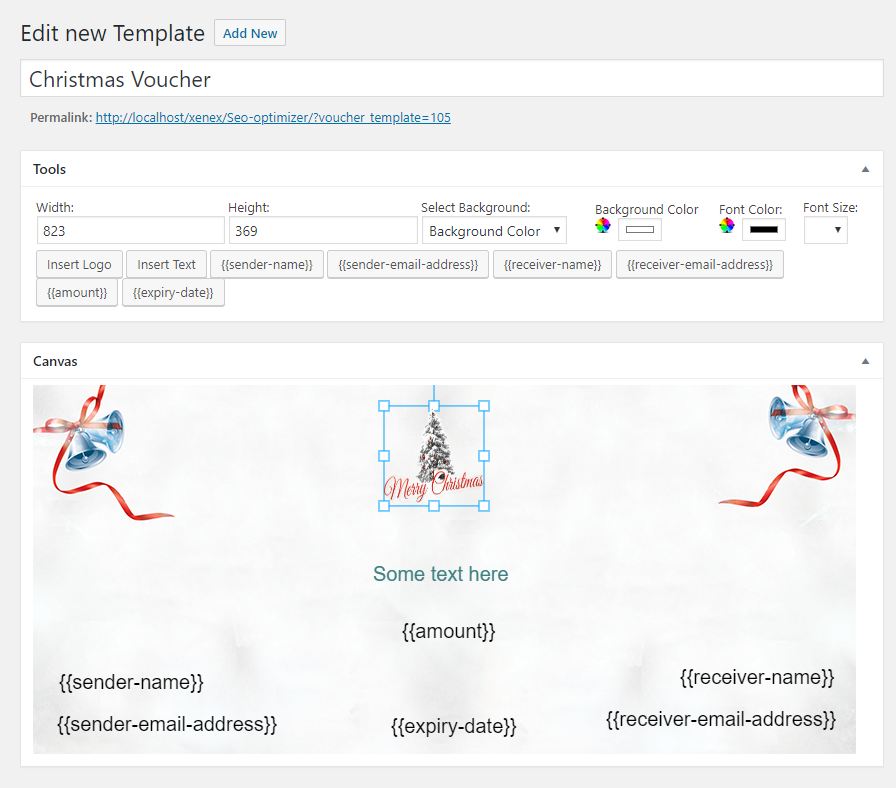
    WP Voucher Creator provides a contemporary and usable interface to build the perfect voucher and discount cards. WP coupon creator provides different tools for voucher layout to assure a more stylish look and a profitable experience for your customers. Coupon creator allows users to edit, delete or view created voucher templates. Through voucher template, users can add multiple options on voucher canvas which are as follows:

    • You can set voucher size, background image, background color, and font size, font color, and many more.
    • Users can upload your company logo inside the voucher canvas.
    • You can insert some text in the voucher.
    • You can add sender or receiver names and email address shortcodes.
    • Users can add voucher amount shortcodes.
    • You can add a voucher expiry date shortcode.
    wp-voucher-template

    Create a new Coupon and Voucher

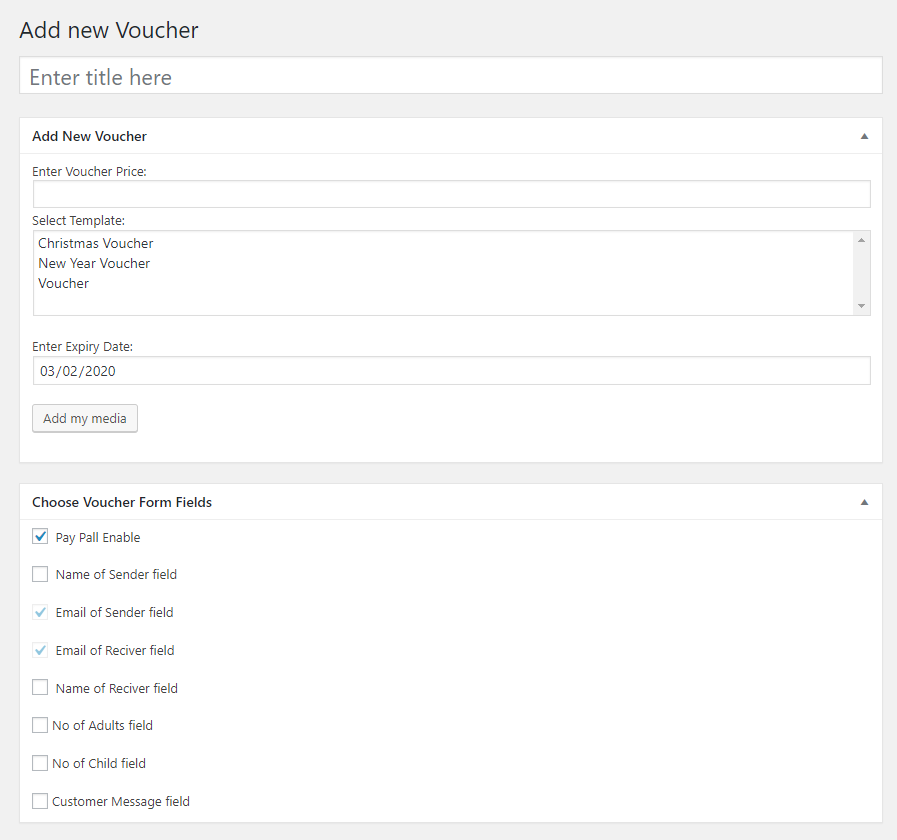
    WordPress promo and gift cards creator offers a versatile voucher card that allows users to set voucher price, voucher expiry date, choose voucher templates, add media, choose voucher form fields.

    Users can select one template at a time. By default, the sender and receiver email is selected. Users can select or deselect the sender or receiver name, number of adults, number of children, and custom message field. Users must have to enable the PayPal option for payment. All these fields and details are displayed on voucher submission time. Now click on the Save button to save changes.

    create-new-voucher

    Voucher ShortCodes

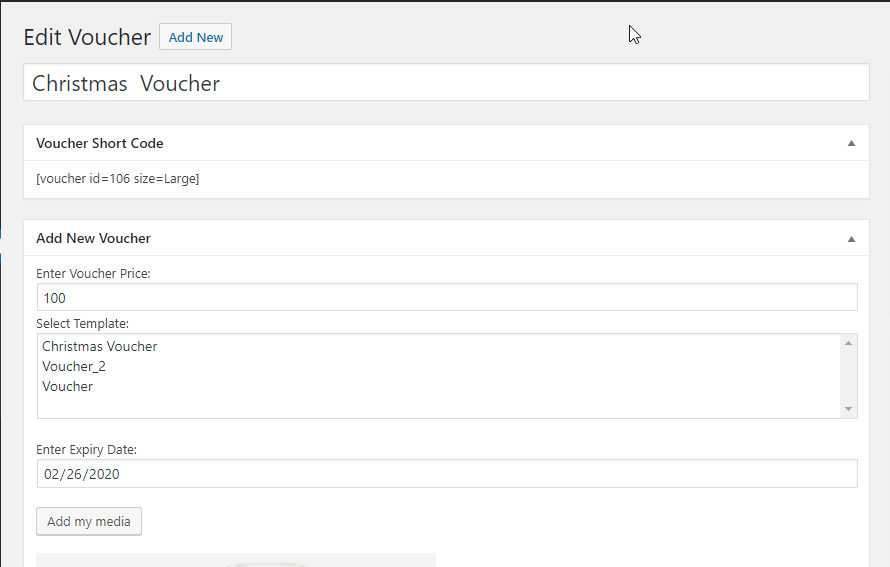
    After publishing a voucher, it generates a shortcode. The voucher shortcode contains the voucher id and size. All you have to do is place the voucher shortcodes on any post or page you want.

    wp-voucher-shortcodes

    Voucher Settings

    • General Settings: In general settings, users can set voucher currency, payment success page, and minimum and maximum amount of vouchers. For example, a user can select a specific page or post to show after successful payment.
    • Paypal Information: The user has to provide PayPal information to receive payments. Coupon Creator provides a PayPal Sandbox option. Users can enable or disable this option. PayPal Sandbox option can be used to test payments. To do that, you have to sign up or log in to https://developer.paypal.com/.
    • Email Settings: WP Voucher Creator allows users to add an email that will receive vouchers bought by any user. Now users can enjoy full and powerful control of each aspect of the wp voucher creator.
    wp-voucher-creator-setting

    How does WordPress Coupon Creator work for frontend users?

    A coupon or a voucher is a great way to convert your website visitors into customers and increase sales on your online store. Let’s take a look at the wordpress voucher creator functionality on the frontend side.  

    Voucher Card

    A voucher card will be shown on the page or post you have entered the voucher shortcode. Users have to click on the voucher to complete the process. A popup modal is open when a user clicks on the voucher card.

    Select Voucher and Coupon Card Design

    Select the voucher design and click on the Next button.

    wp-voucher-card

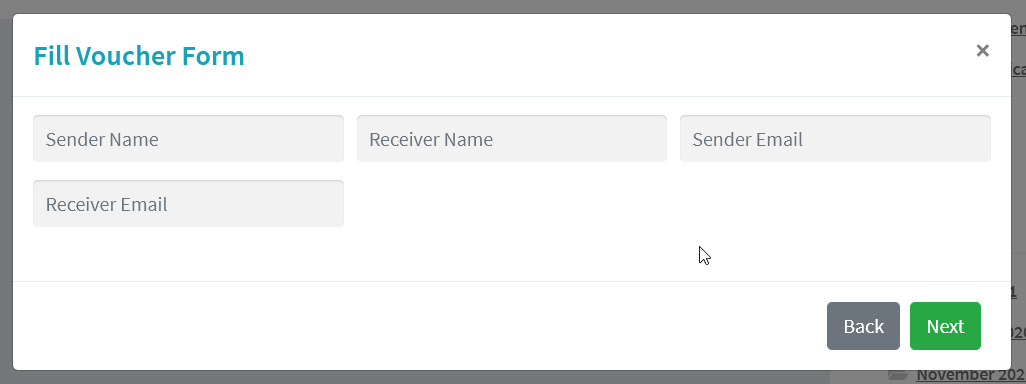
    Fill Voucher Form

    After choosing the voucher and coupon card design, you have to fill the voucher form. The coupon form contains all fields that the backend-end user set while creating a new voucher. After filling the voucher form fields, the user can proceed to next by clicking on the Next button.

    wp-voucher-creator-form

    Preview and payments

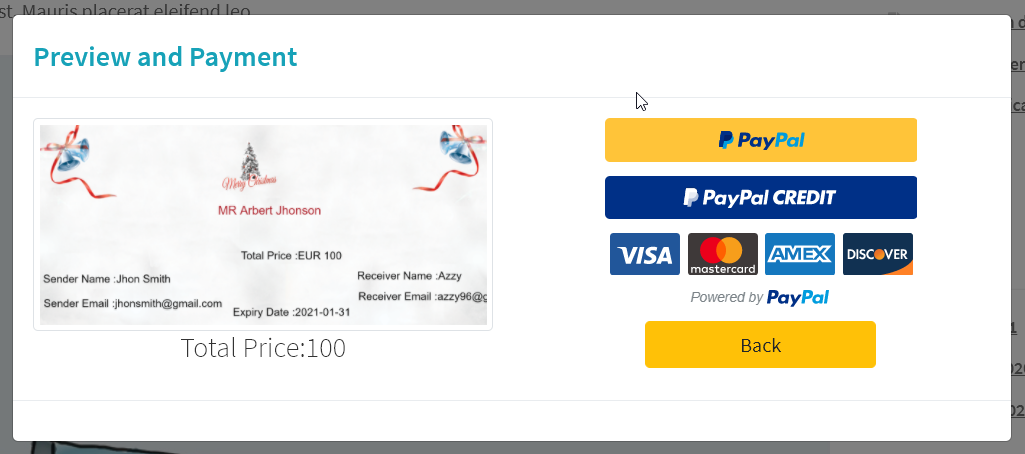
    The preview and payments modal contain the preview of the voucher and coupon card, total price, and payment details. Choose your payment option and complete this process.

    wp-voucher-preview

    Download voucher

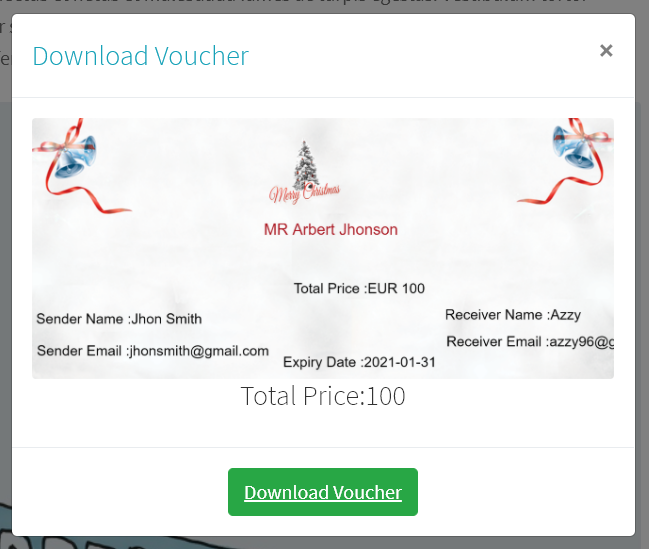
    After successful payment, a download coupon and voucher modal will appear. WP Coupon Creator allows users to print the voucher and gift card at home and put it into a beautiful envelope. They can get a PNG file and print it easily. They have a stylish printed voucher to hand over.

    wp_voucher_creator_download

    We hope this article helped you to create a coupon or voucher on your wordpress website. If you liked this article, then please subscribe to our YouTube Channel for WordPress video tutorials. You can also find us on Twitter and Facebook.